This guide shows how to activate your new Bitdefender subscription using the activation button included in the confirmation email you receive after completing your purchase on the Bitdefender website.
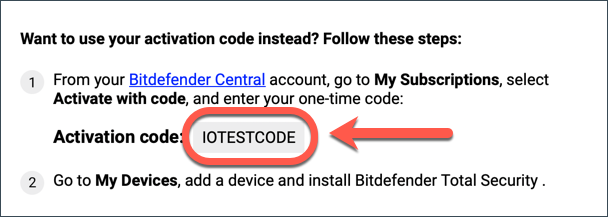
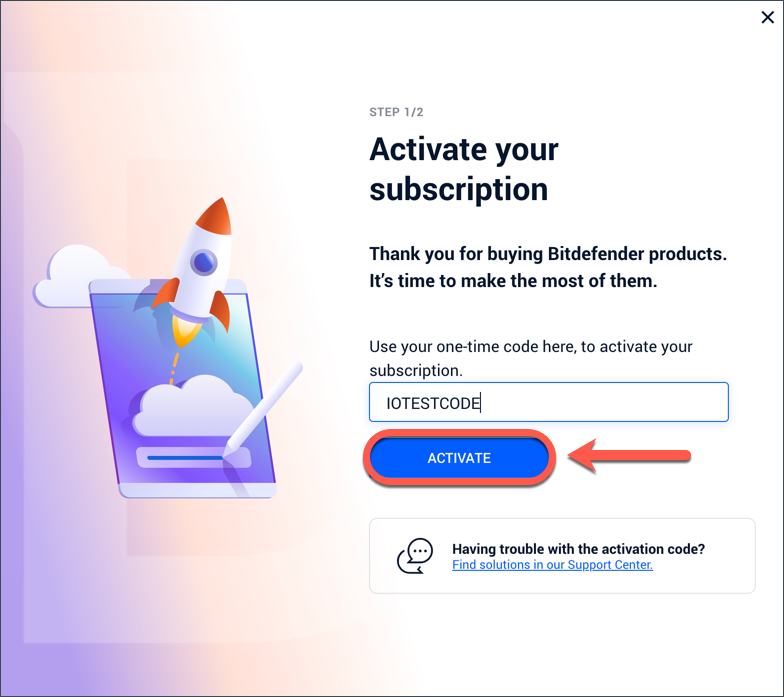
To activate Bitdefender using an activation code instead, follow the separate guide – How to Activate Bitdefender With an Activation Code.
Before You Begin
In some cases, manual activation isn’t required. Your subscription may already be active depending on how the purchase was completed:
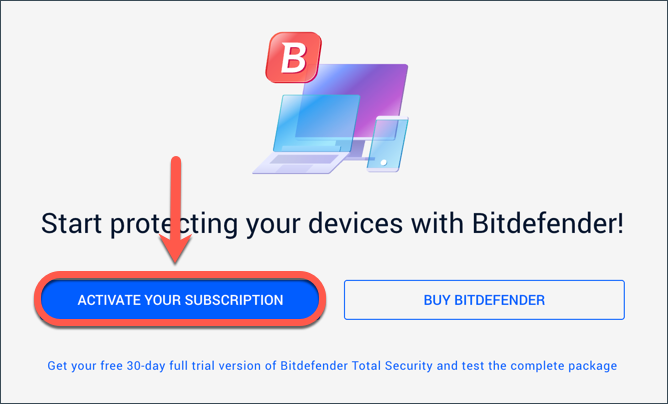
- You clicked the “Activate your subscription” button on the order confirmation page after checkout.
- You signed in to your Bitdefender account during checkout. Your subscription activates automatically once payment is completed.
- You received an email stating that your subscription has been automatically activated and associated with your Bitdefender Central account.
If any of the above apply, no further action is needed.
If not, follow the steps below to activate the subscription using your confirmation email.
Video Tutorial
Step 1: Open the Confirmation Email
- Open the email sent by Bitdefender after your online payment was successfully completed. It should appear in your inbox.
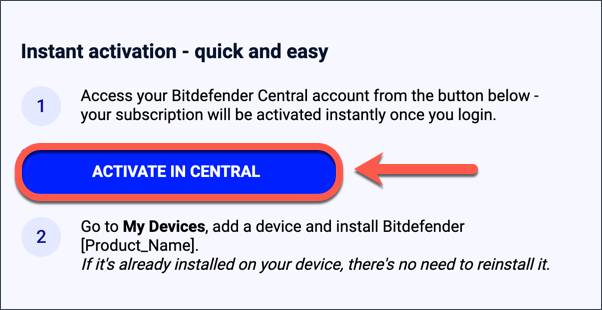
- In that email, click ACTIVATE IN CENTRAL.
-
- Activate in Central Button Doesn’t Work? If this button does not work, you can activate your subscription using the code included in the same email. For step-by-step instructions, see – How to Activate Bitdefender with an Activation Code.

Step 2: Sign in to Bitdefender Central
- After clicking ACTIVATE IN CENTRAL, your browser will open the Bitdefender Central sign-in page.
- Enter your email address and Bitdefender account password to sign in.
- Don’t Have a Bitdefender Account? You’ll need to create one before activating your subscription. For step-by-step instructions, see the guide – How to Create a Bitdefender Central Account.
Step 3: Activate Your Bitdefender Subscription
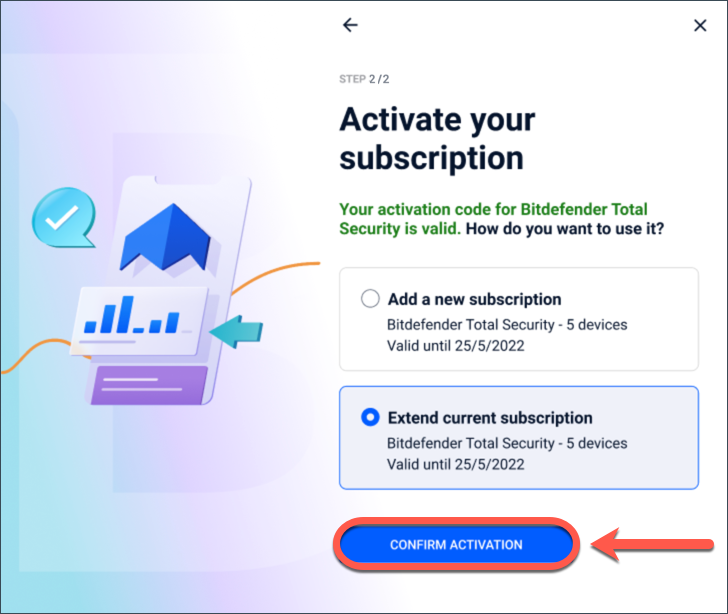
- After signing in to Bitdefender Central, you may be asked to either add a new subscription or extend an existing one.
- Extend Current Subscription: This option only appears if the new subscription matches one of your existing Bitdefender subscriptions, and the combined validity does not exceed 5 years.
- Choose the desired option, then click the Confirm activation button.

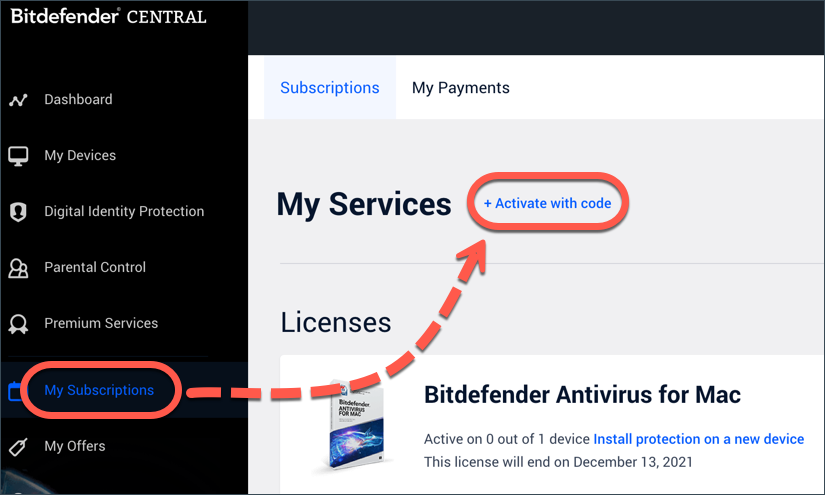
Your new Bitdefender subscription is now active! You can find it in the My Subscriptions section of your Bitdefender Central account.
What’s next?
Now you can install Bitdefender on your devices. On the Bitdefender Central dashboard, click the Install Bitdefender Products button, and follow the on-screen steps to protect your devices.

Got questions? Check out our Frequently Asked Questions to learn more about the activation process and Bitdefender subscriptions.