This article will guide you on managing your Bitdefender subscriptions through Bitdefender Central. To learn about tasks like checking your subscription’s expiry date, adding extra seats to your subscription, and changing device allocation, simply click the corresponding section below.
Check Expiry Date, Device Count, and OS Compatibility
To find out the expiration date of each Bitdefender subscription, the number of available seats, and the supported operating systems:
1. Go to https://central.bitdefender.com and sign in to your Bitdefender Central account.
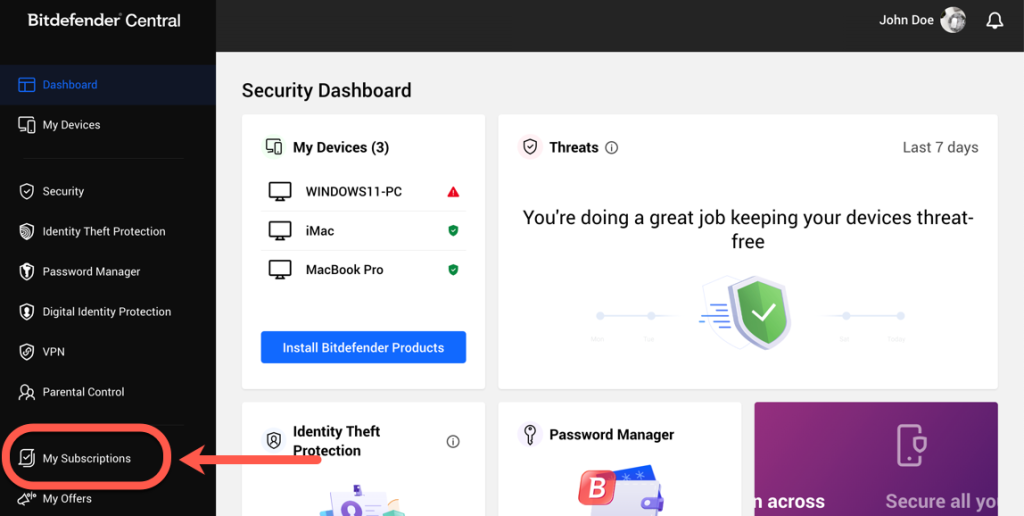
2. Once you’re logged in, on the left-hand side of the page click on the My Subscriptions section.
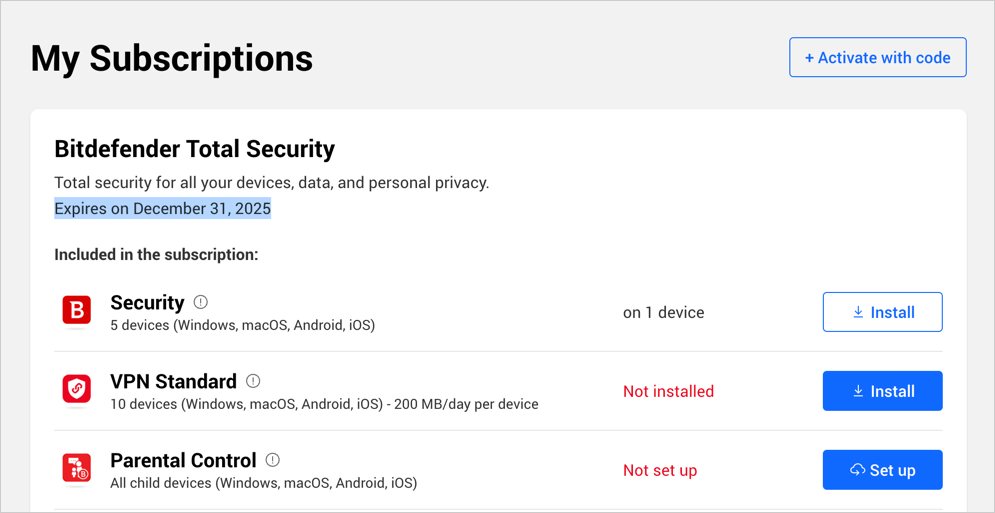
3. Within the My Subscriptions section, you’ll find the following information listed under your Bitdefender subscription:
- Expiry date
- Maximum number of devices for each product included in the subscription
- Compatible operating systems
Manage Device Allocation
To protect a device simply sign in to your Bitdefender Central account and click the Install Bitdefender Products button once you’re logged in.
After a Bitdefender product has been installed on a device, you can transfer that device to another Bitdefender subscription that is currently active in your account (change allocation) or you can remove that particular device from the subscription. Here’s how to change allocation or remove a device from a Bitdefender subscription:
Step 1: Log In to Your Bitdefender Central Account
Visit https://central.bitdefender.com and sign in to your Bitdefender Central account. Make sure you use the account that contains the subscription you want to transfer.
Step 2: Access Your Subscriptions
Once you’re logged in, on the left-hand side of the page click on the My Subscriptions section. This is where you’ll manage your subscriptions.
Step 3: Manage the Old/Expiring Subscription
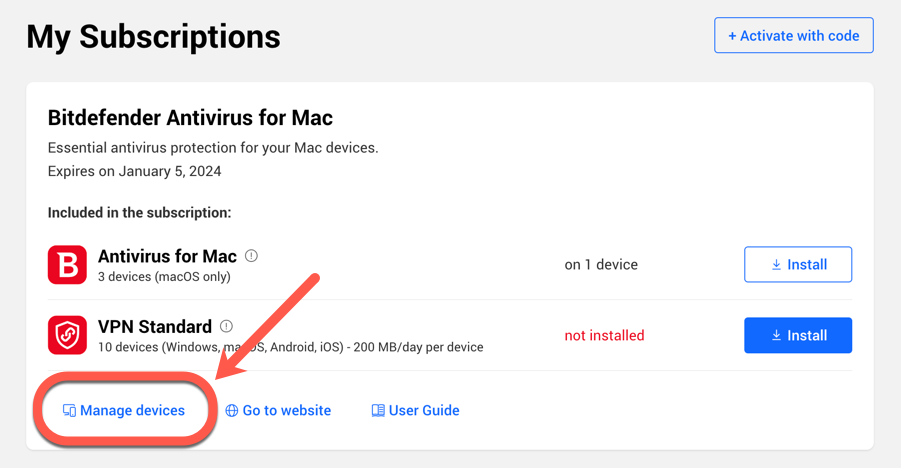
Inside the My Subscriptions panel, you’ll see a list of your subscriptions. Find the old or expiring subscription from which you want to transfer devices and click on the Manage devices button associated with that subscription.
Step 4: View and Modify Device Allocation
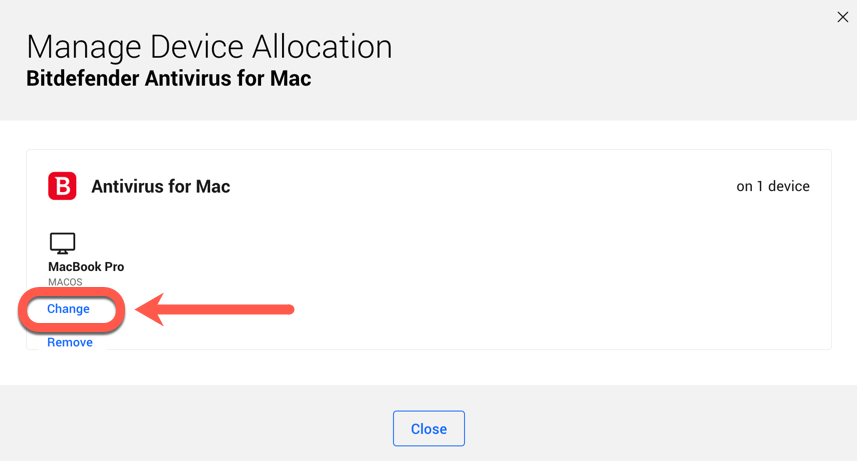
You will now see a list of all the devices currently using the selected Bitdefender subscription. Click on the Change option below the device that you want to reallocate to a different subscription.
Step 5: Change Allocation
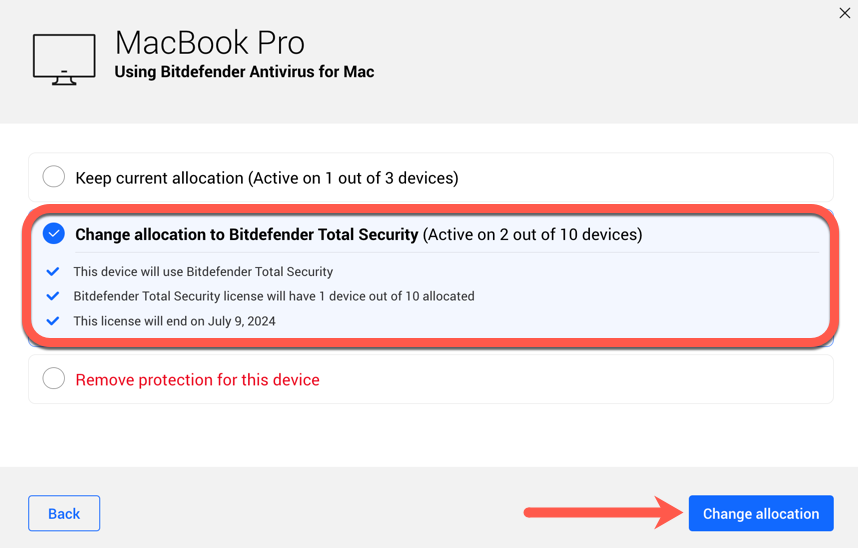
After clicking Change, you will be presented with several options to choose from:
- Keep current allocation. (No changes will be made to the current device).
- Change allocation to […] (move the device to another Bitdefender subscription from your Central account).
- Remove protection from this device. (Choose this option when you want to free up slots from a subscription. On the actual device, the product will be displayed as having no active subscription, with an incentive to buy more slots if the slots have been occupied in the meantime or to buy a subscription for a different or same Bitdefender product.)
ⓘ Note! When reallocating a device, there are some important rules to keep in mind:
- A service can be reallocated only if it includes at least the same applications as the current subscription.
- The number of devices included on the other subscription doesn’t matter. For example, you can move a device from a Bitdefender Total Security subscription for 5 devices to one for 10 devices.
- You cannot reallocate a device to an expired or invalidated subscription.
- When Bitdefender expires, the device is automatically reallocated to a valid subscription, if available.
Add extra seats to your Subscription
Bitdefender subscriptions come with a limited number of slots to install Bitdefender on multiple devices. If you have used up all your slots, you can add more seats by purchasing a separate subscription:
1. Go to https://central.bitdefender.com and sign in to your Bitdefender Central account.
2. Once you’re logged in, on the left-hand side of the page click on the My Subscriptions section.
3. Click on Protect More Devices next to the subscription name.
4. The purchase page will open in a new tab. Follow the on-screen steps to buy more seats, then activate the new subscription in the same Bitdefender account.